


How to Install Wireless CarPlay Adapter in Your Car
- Dom

- Apr 27
- 4 min read
Upgrading your car’s infotainment system to support wireless Apple CarPlay can significantly improve your driving experience. If your vehicle currently has a wired CarPlay connection or lacks CarPlay altogether, installing a wireless CarPlay adapter is a practical solution. This guide will walk you through the process of installing a wireless CarPlay adapter, explain compatibility with aftermarket head units, and offer tips to ensure a smooth setup.
Why You Should Install Wireless CarPlay Adapter
Wireless CarPlay offers convenience and safety by allowing you to connect your iPhone to your car’s infotainment system without cables. This means you can access navigation, music, calls, and messages hands-free, reducing distractions while driving.
Installing a wireless CarPlay adapter is especially useful if your car supports wired CarPlay but you want to eliminate the need for a USB cable. It also works for some vehicles that do not have CarPlay built-in but have compatible infotainment systems.
Here are some benefits of installing a wireless CarPlay adapter:
Cable-free connection: No need to plug in your phone every time you get in the car.
Seamless integration: Works with your existing infotainment system.
Improved safety: Hands-free control reduces distractions.
Easy to install: Most adapters plug into your car’s USB port or connect via Bluetooth.
Before purchasing an adapter, ensure it is compatible with your vehicle and infotainment system.

Step-by-Step Guide to Install Wireless CarPlay Adapter
Installing a wireless CarPlay adapter is generally straightforward. Here is a step-by-step process to help you install one in your car:
Check Compatibility
Verify that your car’s infotainment system supports CarPlay and that the adapter you choose is compatible with your vehicle model.
Prepare Your Car
Turn off your car and disconnect any devices connected to the USB port you plan to use.
Plug in the Adapter
Insert the wireless CarPlay adapter into the USB port that is used for wired CarPlay. This port is usually located near the dashboard or center console.
Power On the Car
Start your car to power the adapter. The adapter’s indicator light should turn on, signaling it is active.
Pair Your iPhone
On your iPhone, go to Settings > Bluetooth and look for the adapter’s name. Select it to pair. You may also need to enable Wi-Fi and Bluetooth for the connection.
Connect to CarPlay Wirelessly
Once paired, your iPhone should automatically connect to CarPlay wirelessly. The infotainment screen will display the CarPlay interface.
Test the Connection
Use Siri, maps, or music apps to ensure the wireless connection is stable and responsive.
Secure the Adapter
If necessary, secure the adapter with adhesive or cable ties to prevent it from moving while driving.
Following these steps will help you install wireless CarPlay adapter efficiently and enjoy a cable-free CarPlay experience.
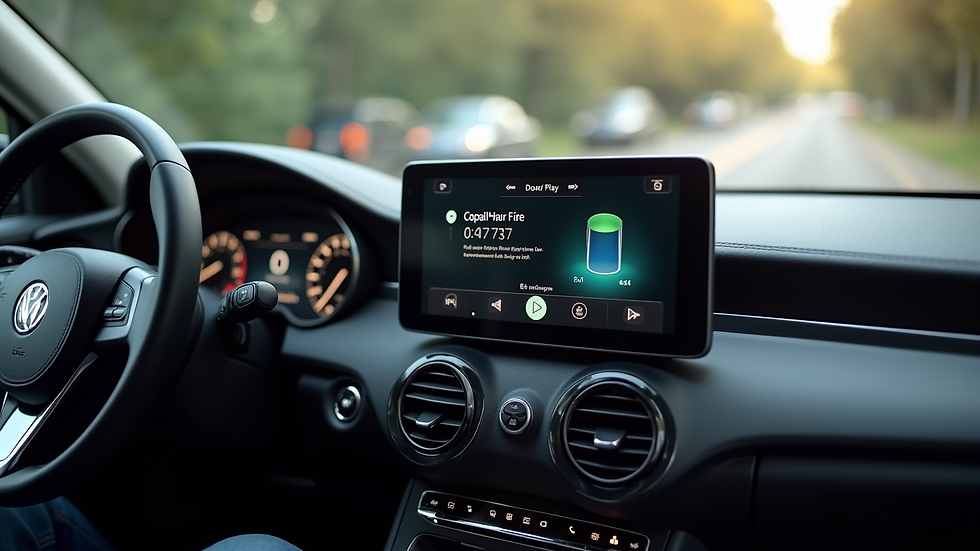
Do Wireless CarPlay Adapters Work on Aftermarket Head Units?
Many car owners upgrade their factory infotainment systems with aftermarket head units to access more features or improve audio quality. A common question is whether wireless CarPlay adapters work with these aftermarket units.
The answer depends on the specific head unit and adapter. Most modern aftermarket head units that support wired CarPlay can also support wireless CarPlay when paired with a compatible adapter. However, some older or less common models may not be compatible.
Here are some points to consider:
Check Head Unit Specifications
Confirm that your aftermarket head unit supports wired CarPlay. Wireless adapters typically require this as a baseline.
Adapter Compatibility
Not all wireless CarPlay adapters work with every aftermarket head unit. Research the adapter’s compatibility list or contact the manufacturer.
Firmware Updates
Some head units may require firmware updates to support wireless CarPlay adapters.
Installation Location
The adapter usually connects to the USB port on the head unit. Ensure the port is accessible.
Performance
Wireless CarPlay performance can vary depending on the adapter and head unit combination. Look for user reviews or tests for your specific setup.
If your aftermarket head unit supports wired CarPlay, there is a good chance a wireless CarPlay adapter will work, allowing you to enjoy wireless connectivity without replacing your entire system.
Tips for Optimising Your Wireless CarPlay Experience
Once you have installed your wireless CarPlay adapter, there are several ways to optimise your experience:
Keep Your iPhone Updated
Ensure your iPhone is running the latest iOS version for best compatibility.
Maintain Bluetooth and Wi-Fi
Wireless CarPlay uses both Bluetooth and Wi-Fi. Keep these enabled on your phone.
Minimise Interference
Avoid placing other wireless devices near the adapter to reduce signal interference.
Use Quality Adapters
Invest in a reliable adapter with good reviews to avoid connection drops.
Regularly Check Firmware
Some adapters offer firmware updates to improve performance and fix bugs.
Secure the Adapter
Prevent the adapter from moving or disconnecting by securing it properly.
Restart if Needed
If CarPlay disconnects, try restarting your car or toggling Bluetooth on your phone.
By following these tips, you can maintain a stable and enjoyable wireless CarPlay connection.
Enhancing Your Car’s Tech with Wireless CarPlay
Installing a wireless CarPlay adapter is a cost-effective way to upgrade your car’s infotainment system without replacing the entire unit. It brings modern convenience and safety features to your driving experience.
If you want to upgrade your car’s connectivity, consider investing in an aftermarket wireless carplay adapter that fits your vehicle. This small device can make a big difference in how you interact with your phone on the road.
By following the installation steps and tips outlined here, you can enjoy the benefits of wireless CarPlay quickly and easily. This upgrade aligns with the goal of making advanced infotainment features accessible to more drivers, enhancing every journey.
Wireless CarPlay adapters are a practical solution for car owners looking to modernise their vehicles with minimal hassle. With the right adapter and proper installation, you can enjoy a safer, smarter, and more connected drive.


Comments