


How to Play YouTube in Car: Enjoy YouTube Videos on Your Car Display
- Dom

- Jul 6
- 4 min read
Watching YouTube videos in your car can be a great way to stay entertained during long trips or while waiting. If you have an existing infotainment system, you might wonder how to safely and effectively play YouTube videos on your car display. This guide will walk you through practical methods and considerations to help you enjoy YouTube content on your car screen without compromising safety or functionality.
Ways to Play YouTube in Car Displays
Modern cars often come with infotainment systems that support smartphone integration, such as Apple CarPlay or Android Auto. However, these platforms typically restrict video playback while driving for safety reasons. Despite this, there are still ways to access YouTube videos on your car display, especially when the vehicle is stationary.
Here are some common methods:
Using Android Auto or Apple CarPlay with Third-Party Apps
Some third-party apps allow video playback on CarPlay or Android Auto, but they may require additional setup or jailbreaking your device, which is not recommended due to security risks.
Screen Mirroring Devices
Devices like wireless HDMI adapters or specific car dongles can mirror your smartphone screen to the car display. This method allows you to play YouTube videos directly from your phone.
Built-in Browser or Apps in Infotainment System
Some infotainment systems have built-in browsers or app stores where you can install YouTube or similar apps. This depends on your car’s make and model.
Using a Portable Media Player Connected to the Car Display
Connecting a tablet or media player via HDMI or USB can also enable video playback on the car screen.
Each method has pros and cons related to ease of use, safety, and compatibility. It is important to choose the one that fits your car’s system and your needs.
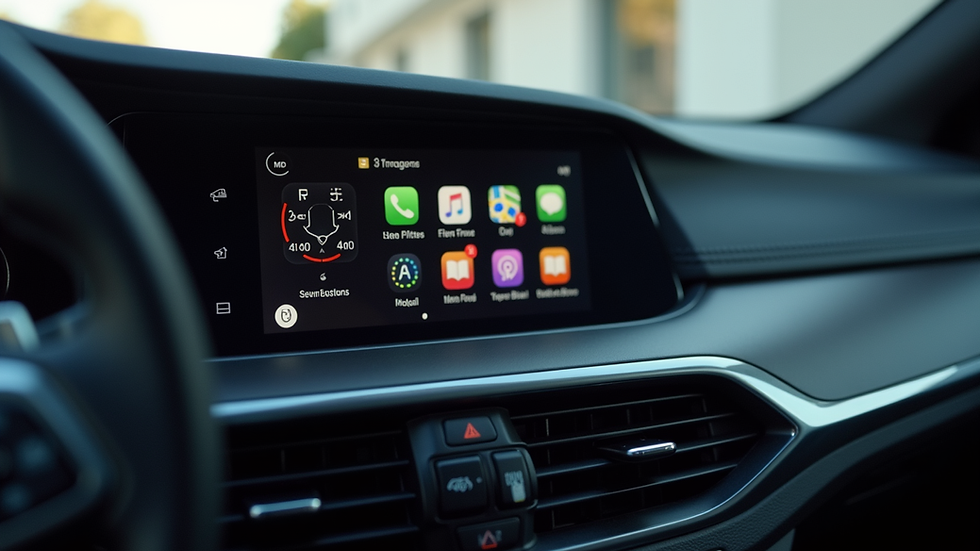
How to Play YouTube in Car Safely
Safety is paramount when using video playback in vehicles. Watching videos while driving is dangerous and illegal in many places. Here are some tips to ensure safe use:
Only watch videos when the car is parked
Use video playback features only when the vehicle is stationary, such as during breaks or while waiting.
Use voice commands and hands-free controls
If your system supports voice control, use it to minimize distractions.
Set up playlists or download videos before driving
Prepare your content in advance to avoid fiddling with the system while on the road.
Use apps or devices that disable video playback while driving
Some apps automatically block video playback when the car is moving.
By following these guidelines, you can enjoy YouTube videos on your car display without compromising safety.
Can I get YouTube on my car screen?
Many car owners ask if it is possible to get YouTube directly on their car screen. The answer depends on your car’s infotainment system and its capabilities.
Factory-installed infotainment systems
Some newer vehicles come with app stores or pre-installed apps that include YouTube or similar video services. Check your car’s manual or settings.
Aftermarket infotainment systems
If your car has an aftermarket system, it may support installing apps or screen mirroring, making it easier to access YouTube.
Smartphone integration
Using Apple CarPlay or Android Auto, you can access some media apps, but YouTube video playback is usually restricted while driving.
Using external devices
Devices like Ottocast’s wireless adapters can enhance your infotainment system by enabling wireless Apple CarPlay and Android Auto, which may support video playback when parked.
If your current system does not support YouTube, consider upgrading or adding compatible devices to expand your car’s multimedia capabilities.

Step-by-Step Guide to Add YouTube to Your Car Display
If you want to add youtube to my car display, here is a practical approach to do so:
Check your car’s infotainment system compatibility
Identify if your system supports app installation, screen mirroring, or smartphone integration.
Choose the right device or app
Depending on your system, select a compatible device such as a wireless CarPlay adapter or a screen mirroring dongle.
Install necessary apps on your smartphone
Download apps that support video playback on CarPlay or Android Auto, or apps that enable screen mirroring.
Connect your smartphone to the car display
Use USB or wireless connection methods as supported by your system.
Access YouTube through the chosen method
Open YouTube on your phone or through the car’s app interface and start playback when the car is stationary.
Adjust settings for safety and convenience
Enable voice commands, set screen timeout, and avoid interacting with the screen while driving.
By following these steps, you can enjoy YouTube videos on your car display with minimal hassle.
Enhancing Your In-Car Entertainment Experience
Upgrading your car’s infotainment system can significantly improve your driving experience. Here are some additional tips to enhance your in-car entertainment:
Invest in wireless Apple CarPlay or Android Auto adapters
These devices allow seamless smartphone integration without cables, making it easier to access apps like YouTube.
Use high-quality audio systems
Pair video playback with good speakers or Bluetooth headphones for better sound.
Keep your software updated
Regular updates ensure compatibility and security for your infotainment system and connected devices.
Explore other entertainment options
Besides YouTube, consider podcasts, audiobooks, and music streaming apps to diversify your media choices.
Prioritize safety features
Use apps and devices that limit distractions and comply with local road safety laws.
By making these improvements, you can create a more enjoyable and safer environment for entertainment in your car.
Enjoying YouTube videos on your car display is possible with the right setup and precautions. Whether through smartphone integration, screen mirroring, or upgrading your infotainment system, you can bring your favourite content on the road. Remember to always prioritise safety and use video playback responsibly. For those looking to enhance their car’s tech, exploring wireless Apple CarPlay and Android Auto options is a smart move to unlock advanced features and convenience.


Comments